

From fake parcel delivery texts to emails that look exactly like they’re from your bank, online scams have become part of everyday life on both sides of the Tasman.
New Zealanders aren’t immune either. The National Cyber Security Centre (NCSC) received more than 1,100 incident reports in each of the first two quarters of 2026, with reported direct losses of $5.6 million between January and March alone. Most of those losses were suffered by individuals rather than businesses.
The good news is that protecting yourself online is easier than you might think. You don’t need to be tech-savvy; you just need to know where the risks are. Here are the most important steps to take.
1. Swap passwords for passphrases
Your pet’s name, your birthday or your favourite footy team might be easy to remember, but they’re also easy to guess. Cyber security agencies in New Zealand recommend using a passphrase instead: a string of four or more random words, such as ‘purple kettle jumps rainforest’. Passphrases are long, which makes them hard to crack, but easy for you to remember.
Just as important, use a different passphrase for every account. If one website is hacked and your details are leaked, criminals will try the same email and password combination on other sites, including your email and online banking.
2. Let a password manager do the remembering
Keeping track of dozens of unique passphrases is impossible for most of us, and that’s where a password manager comes in. It securely stores all your logins behind one strong master passphrase and can create new ones for you. Many phones and web browsers have one built in, or you can use a reputable password manager app.
3. Turn on multi-factor authentication
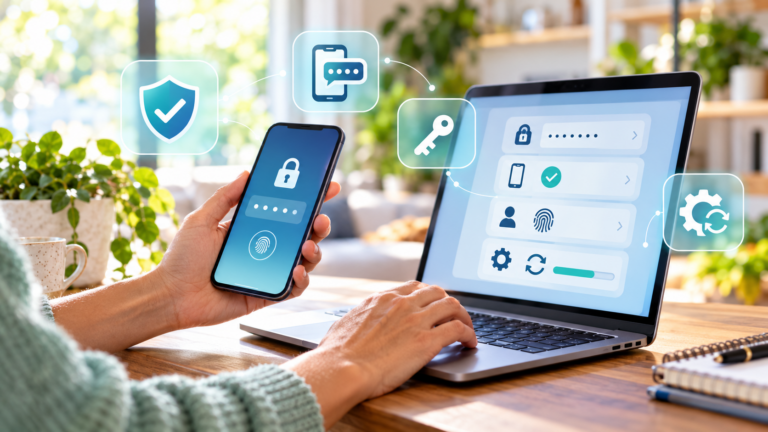
Multi-factor authentication (MFA), sometimes called two-step verification, adds an extra layer of protection by asking for a second piece of proof when you log in, such as a code sent to your phone, a code from an authenticator app or your fingerprint. Even if a scammer steals your password, they can’t get into your account without it.
Switch on MFA for your most important accounts first: email, online banking, social media and government services. Your email account is especially important, because anyone who can get into it can reset the passwords for almost everything else. If a site offers passkeys, which let you sign in with your fingerprint, face or phone PIN instead of a password, they’re a secure and convenient option too.
While you’re at it, take a look at your account security questions. Answers like your mother’s maiden name or the street you grew up on are often easy to find online. Consider using made-up answers, and keep them in your password manager.
4. Stop putting off updates

It’s tempting to tap ‘remind me later’, but software updates often fix security flaws that criminals are already exploiting. Turn on automatic updates for your phone, computer, apps and web browser, and restart your devices regularly so updates can install. If a device is so old it no longer receives security updates, it’s time to think about replacing it.
5. Use security software and keep it switched on
Modern computers come with built-in protection. Windows has Microsoft Defender antivirus and a firewall, and Macs have their own built-in security features. Check that they’re switched on in your settings, or install reputable security software from a trusted provider. Keep it updated so it can recognise the latest threats, including spyware that secretly collects your passwords and personal information.
Only download apps from official app stores, and be wary of any message urging you to install software or ‘security updates’ through a link.
6. Back up the things that matter
If your device is lost, stolen or infected with ransomware, which locks your files until you pay up, a backup can save the day. Regularly back up your photos, documents and other important files to an external hard drive or a secure cloud service, or both. Turning on automatic backups means you’ll never have to remember.
7. Learn to spot a scam message
Phishing messages are designed to look like they come from organisations you know and trust, such as your bank, a government agency, a toll road operator, a delivery company or a popular online store. They usually try to rush you into acting, with warnings that your account will be locked, a parcel can’t be delivered or you owe an unpaid fine.
Watch out for these warning signs:
- A sense of urgency or a threat if you don’t act quickly
- A link asking you to log in, update your details or make a payment
- Requests for passwords, one-time codes or card details
- A sender’s email address or website that’s slightly off
- An offer that seems too good to be true
If you’re unsure, don’t click. Instead, contact the organisation directly using the official app, or a phone number or website you’ve found yourself. Many banks and government agencies no longer include links in their texts and emails, and a genuine organisation will never ask you to share your one-time security codes.
8. Think twice before scanning a QR code
Scammers have started using QR codes to get around email filters and lure people to fake websites, a trick sometimes called ‘quishing’. Be wary of QR codes in unexpected emails or letters, and check for stickers placed over genuine codes on parking meters or posters. After scanning, look carefully at the web address before entering any details.
9. Hang up on unexpected callers
If someone calls claiming to be from your bank, telco, the police or a tech company and asks you to move money, share a code or install software so they can ‘fix’ a problem, hang up. Never let a stranger take remote control of your computer or phone. Call the organisation back on a number you know is genuine.
10. Lock down your home Wi-Fi
Your home internet router is the front door to every device in your house, so make sure it’s locked. Change the default admin password that came with the router, use a strong Wi-Fi password, and check that your network uses WPA3 or WPA2 encryption (you’ll find this in your router settings). Keep your router’s software up to date too, or ask your internet provider to help.
11. Be careful on public Wi-Fi
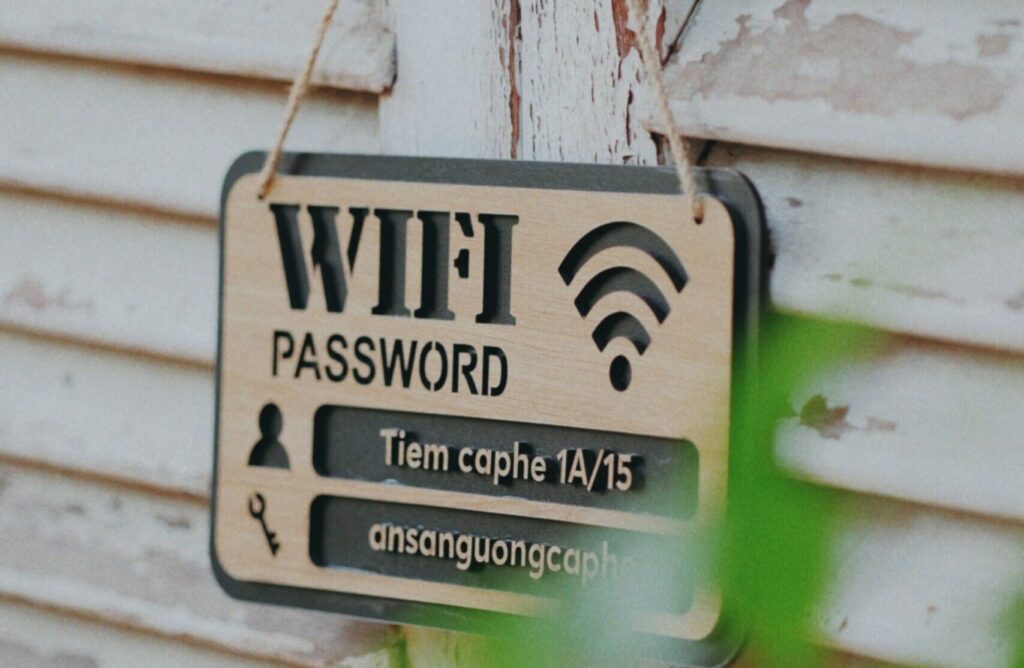
Free Wi-Fi at the airport, cafe or shopping centre is handy for browsing, but it’s not the place to do your banking or enter card details, as you can’t be sure who else is on the network. For anything sensitive, switch to your mobile data or wait until you’re home. A reputable virtual private network (VPN) app can add extra protection when you do need to use public Wi-Fi.
12. Switch off Bluetooth when you’re not using it
Bluetooth is great for connecting headphones, speakers and smartwatches, but leaving it on all the time gives criminals another possible way in. Turn it off when you don’t need it, and don’t accept pairing requests from devices you don’t recognise.
13. Think before you share
Every detail you post online, from your full birth date and home address to your pet’s name and your holiday plans, can help a scammer guess your passwords, answer your security questions or pretend to be you. Check the privacy settings on your social media accounts so only people you know can see your posts, and think twice about what you share publicly.
Never send card numbers, bank details or copies of your ID by email or text, and only share sensitive information with organisations you’ve contacted yourself.
14. Be careful with saved card details
Letting your web browser remember your card details is convenient, but it means anyone who gets into your device can go shopping. Consider switching off autofill for payment details, or use a digital wallet such as Apple Pay or Google Pay, which doesn’t share your actual card number with retailers. Always lock your phone and computer with a PIN, password, fingerprint or face recognition.
It’s also worth checking your bank and card statements regularly, so you can spot any unfamiliar transactions quickly.
15. Wipe old devices before you let them go
Upgraded your phone or laptop? Before you sell, donate, trade in or recycle the old one, make sure your personal information goes with you, not with the device. Simply deleting files isn’t enough, as they can often be recovered.
- Back up anything you want to keep.
- Sign out of all your accounts, including your Apple ID or Google account, and remove the device from them.
- Do a factory reset, which erases your data and returns the device to its original settings. You’ll find the option in your device’s settings.
- Remove your SIM and memory cards.
If an old computer or hard drive no longer works and you can’t reset it, take it to an e-waste recycler that offers secure data destruction.
What to do if you’ve been scammed or hacked
If you think you’ve been caught out, act quickly. The sooner you take action, the better your chance of limiting the damage.
- Contact your bank straight away if you’ve shared financial details or sent money. They may be able to stop a payment or freeze your account.
- Change your passwords, starting with your email, and turn on multi-factor authentication.
- Report it. Your report helps authorities warn others and track down the people responsible.
- Get support. Being scammed can be upsetting, and it’s nothing to be embarrassed about. Free, confidential help is available.
In New Zealand
- If you’ve lost money, contact NZ Police on 105 or report online
- Report phishing, hacked accounts and other cyber security issues to the National Cyber Security Centre at ncsc.govt.nz/report
- Get advice and report scams to Netsafe on 0508 638 723
- Forward scam texts free to 7726 to report them to the Department of Internal Affairs
- For help with identity theft, contact IDCARE on 0800 121 068